

Top 5 n8n Workflows: Practical AI Automation Examples

A website enquiry arrives while your sales team is on a call. An invoice lands in a shared inbox. On Monday morning, someone opens last week’s spreadsheet and starts assembling the same report again. Each task starts with a predictable event, which makes it a good candidate for an n8n workflow.
This guide walks through five n8n workflows you can adapt for sales, customer support, finance and operations. Each example shows the nodes to connect, where AI fits, and what a successful run should produce. If you’re new to n8n, start with Gmail reply drafts. You can see the result in your inbox and review it before sending.

Workflow Best for What it produces Setup level
Lead capture and qualification Sales and marketing A lead record and an alert for sales Easy to medium
WhatsApp customer support Customer support An FAQ reply or a support ticket Medium
Invoice and receipt processing Finance and admin A spreadsheet row ready for review Easy to medium
Gmail triage and reply drafts Teams with a shared inbox An email label and a reply draft when needed Easy to medium
Weekly performance reporting Marketing, sales and operations A KPI summary in Slack or email Medium

What are n8n workflows?

An n8n workflow is a sequence of connected steps that moves data between apps and acts on it. A trigger starts the run, such as a form submission or a scheduled time. Each node does a job, such as reading a row or applying a rule. Connections pass data between nodes and let you route different cases to different actions.
A lead form, for example, can start a workflow that reads the enquiry, saves a row in Google Sheets and alerts sales. An AI model helps interpret the free-text enquiry. A regular IF node applies the sales team’s criteria. That split also works for invoices and reports. Use AI to read or write language, and use explicit rules for checks, calculations and routing decisions you need to reproduce.

Start with one workflow

Pick a task you can verify quickly. Create a Gmail draft from one test message, capture a lead in a test sheet or send yourself one weekly report. Once that first run works, try a case where a field is missing or the model can’t find an answer. That’s often where you’ll learn what the team needs before using the workflow every day.

If you want guided practice building automations for business teams, explore INTTRVU.AI’s Generative AI and Agentic AI for Leaders program.

Five n8n workflow examples you can build

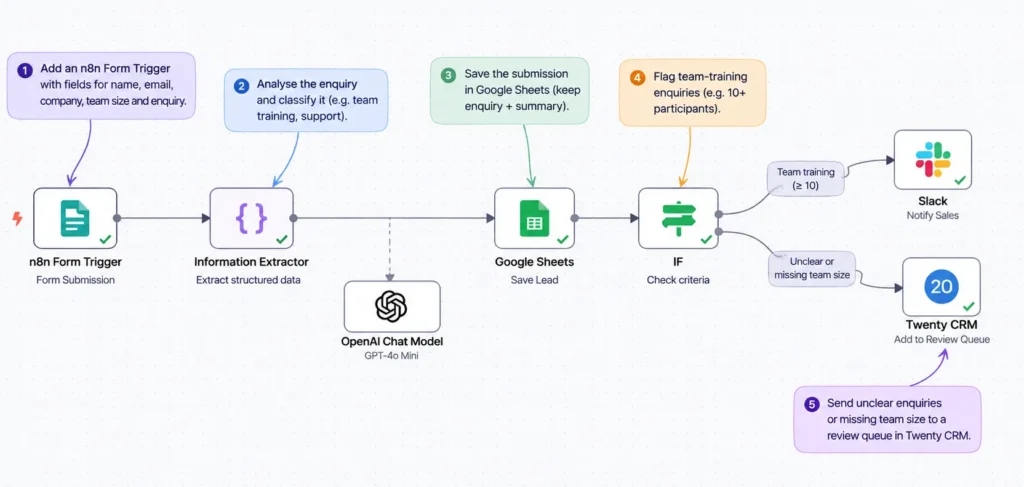
A training provider might receive enquiries about team workshops, individual courses and existing enrolments through the same form. Reading each message before assigning it slows down follow-up. This workflow gives sales a short summary and flags business enquiries that meet the team’s criteria
How to build it

  1. Add an n8n Form Trigger with fields for name, email, company, team size and enquiry. Submit a sample through the test URL so you can see the incoming fields in the editor.
  2. Connect Information Extractor to a chat model. Pass in the enquiry text and ask for an enquiry type such as team_training, individual_course, support or unclear, plus a one-sentence summary. Keep the original form values for email and team size.
  3. Save the submission in Google Sheets or your CRM. Match repeat submissions by a stable ID if your form provides one. Keep the original enquiry alongside the summary so a teammate can check the AI classification.
  4. Use IF to flag team-training enquiries that meet your criteria. For example, notify sales in Slack when the form lists at least 10 participants. Send unclear enquiries or records missing a team size to a review queue.

Example result: “We’d like an AI workshop for 18 managers next month” becomes a lead labelled team_training with 18 participants and a sales alert. Sales can open the original record and decide how to follow up.

Related lead qualification template

2. Automate WhatsApp customer support with an FAQ

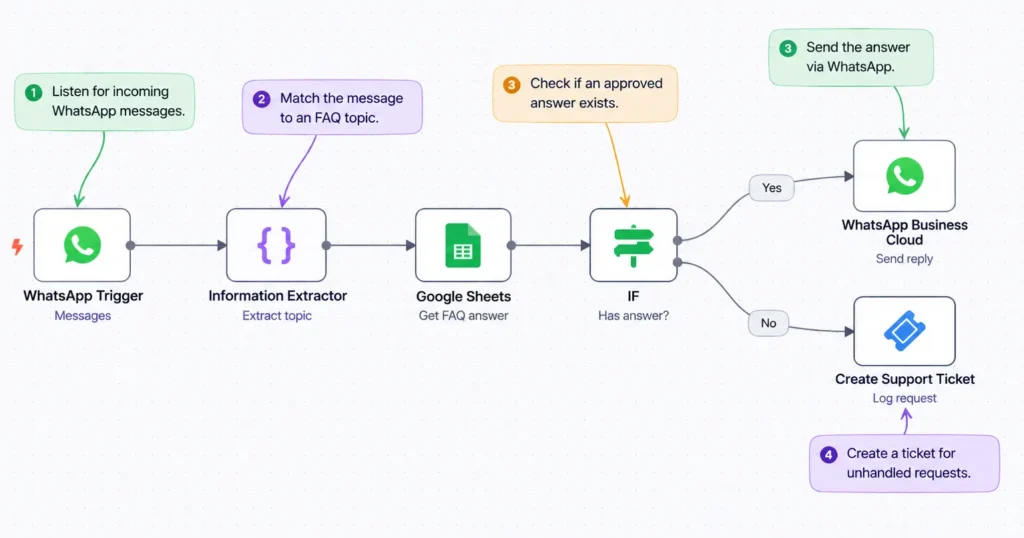
Support teams often answer the same questions about hours, bookings or how to access a portal. A WhatsApp workflow can handle questions covered by an approved FAQ and send account-specific requests to someone who can investigate.
How to build it

  1. Set up WhatsApp Business Cloud with a Meta developer account, a business portfolio and a Meta app configured for WhatsApp. Connect the WhatsApp Trigger and choose the Messages event. Use a separate Meta test app if you already have a live workflow, since switching webhook URLs on one app can interrupt live delivery.
  2. Store approved answers in a small Google Sheets table with a topic, FAQ ID and answer. Use Information Extractor with a chat model to map each incoming text message to an approved topic or unknown, then look up the matching answer.
  3. Use IF to check whether an approved answer exists and the request is suitable for automation. Send the approved text through WhatsApp Business Cloud. Filter out delivery status events and use the inbound message ID to avoid replying twice to the same event.
  4. Create a ticket for missing answers, refunds, payment disputes and requests to speak to a person. Give the customer a direct route to support and include the original question in the ticket.

Example result: “How do I reset my portal password?” gets the approved reset steps. “I paid yesterday and my course still isn’t showing” becomes a support ticket for a teammate to check.

Related whatsapp automation template

3. Extract invoice and receipt data with AI

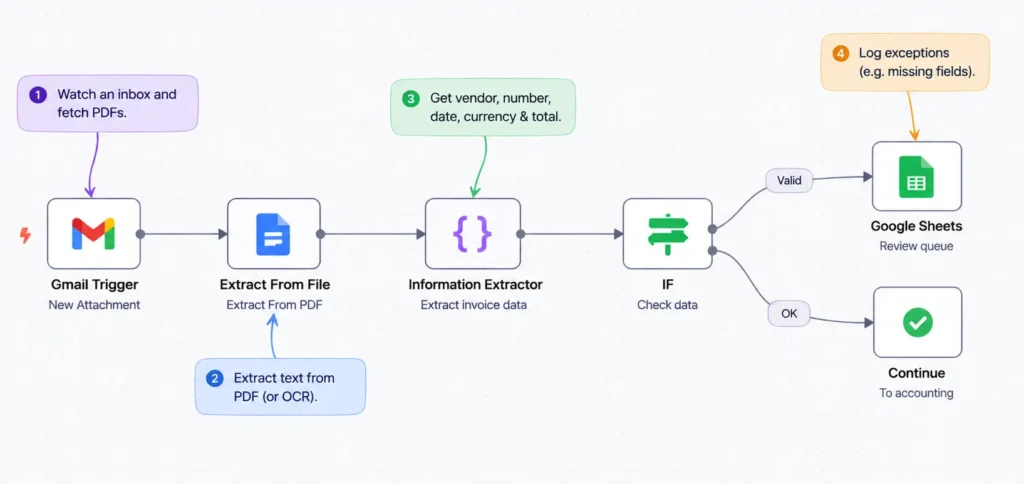
Supplier invoices arrive in different layouts. One puts the invoice number at the top and another buries it beside the payment details. AI can pull those fields into a consistent format so finance can focus on checking them against the original document.
How to build it

  1. Use Gmail Trigger to watch a test invoice inbox or a dedicated label. Fetch each PDF attachment with Gmail. For a simpler first build, accept one uploaded PDF through an n8n Form Trigger.
  2. Use Extract From File with Extract From PDF for files with selectable text. For scanned PDFs or receipt photos, send the file through an optical character recognition (OCR) service to turn the image into text.
  3. Send the extracted text to the Information Extractor. Request vendor, document number, date, currency and total. Allow missing fields to come back as empty values and tell the model to preserve the amounts as written.
  4. Check which required fields are missing, whether the amount parses as a number, and whether that vendor and invoice number are already recorded. Write the result to a Google Sheets review tab. Give exceptions to a reason such as Missing invoice number or Possible duplicate. A finance teammate verifies the row against the source before it enters the accounting system.

Example result: A sample PDF from Northstar Supplies produces a row with invoice ID NS-1042, date 2026-11-12, currency INR, total 11800.00 and status Pending review. A cropped scan with no visible total is flagged for manual entry.

Related invoice extraction template

4. Sort Gmail messages and draft AI replies

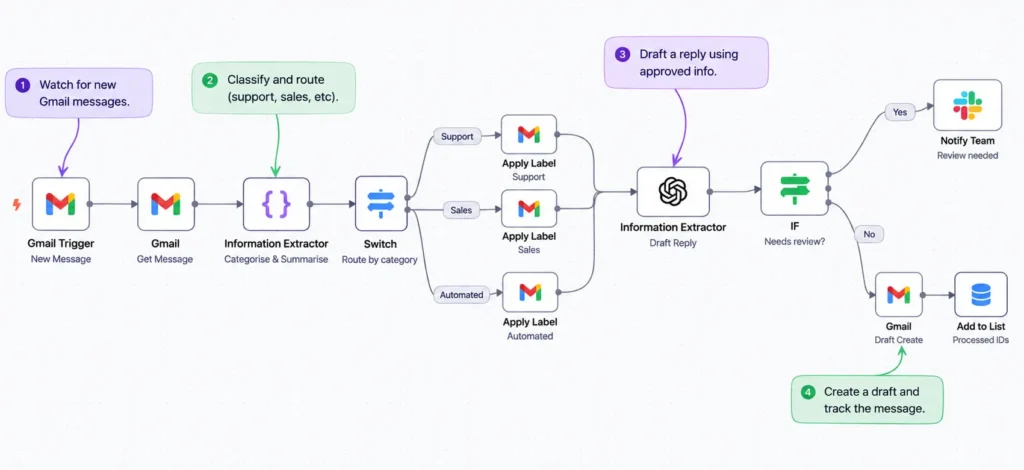
A shared inbox can contain sales enquiries, customer questions and automated notifications. Sorting them takes time before anyone starts replying. This workflow labels each email and prepares a draft for messages that need a response.
How to build it

  1. Use a Gmail Trigger for new messages. Start with a test label. If the trigger returns only a snippet, fetch the message with Gmail → Message → Get and turn off Simplify to access the full payload. Use the plain-text body when it’s available.
  2. Use a model with Information Extractor to return a category and a short summary. Add a Switch node to route support, sales and automated messages. Apply a Gmail label to each. Skip draft creation for automated notifications.
  3. For messages that need a response, give the model the original email and any relevant approved policy or FAQ text. Ask it to draft a reply using those facts and return a review flag if a key detail is missing. Route flagged messages to a teammate without creating a draft.
  4. Use Gmail → Draft → Create. Set the recipient from the original sender and use the original thread ID. Check the source message ID against a processed list before creating a draft. Add the ID once the draft is created so normal reruns can skip it. A teammate edits and sends the draft from Gmail.

Example result: “Could you share the dates for the next workshop?” gets a sales label and a draft using the approved schedule. If the schedule is missing, a teammate gets the inquiry to handle directly.

Related Gmail triage template

5. Generate weekly business performance reports

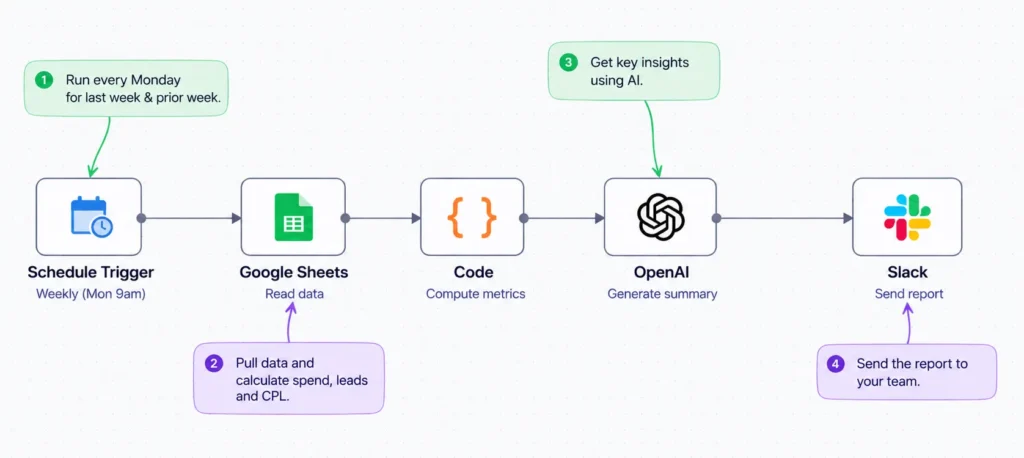
A marketing team may already track spend and leads in a spreadsheet. The Monday task is to pull the two reporting periods, compare them and write a summary. n8n can gather the data and calculate the figures, then use AI to explain the changes in plain language.
How to build it

  1. Set a Schedule Trigger for Monday morning in your team’s time zone. Define which dates count as the last completed week and the week before it.
  2. Read those dates from Google Sheets. Calculate spend, leads and cost per lead with Sheets formulas or a Code node. Define cost per lead as spend divided by leads. If leads are zero, show cost per lead as unavailable. If a period is incomplete, alert the report owner and hold the comparison.
  3. Pass both weeks’ calculated metrics to an AI model. Ask for two or three observations supported by the supplied numbers. Keep the metrics table in the report so readers can check the summary. If the model suggests a cause, present it as a question to investigate.
  4. Send a test report to your own inbox or a private Slack channel. Compare it with the source sheet before publishing the workflow and switching to the team’s channel.
Metric Previous week Last completed week
Ad spend ₹10,000 ₹10,000
Leads 100 125
Cost per lead ₹100 ₹80

The report summary could read, “Spend held steady and leads rose by 25%. Cost per lead fell 20%, from ₹100 to ₹80.”

Related weekly KPI reporting template

How to get started with n8n workflow templates

  1. Choose where to run n8n. n8n Cloud is managed for you. Self-hosting lets you run n8n on the infrastructure you manage. Check hosting and execution costs as well as any separate charges for model APIs, OCR or WhatsApp messaging.
  2. Start with the apps you already use. Pick a workflow with one trigger and one output you can inspect. Browse the n8n workflow template library or build from the node steps above. Some community templates use different apps or require additional accounts, so check their dependencies before importing.
  3. Connect your credentials and map your data. Select your own sheet, inbox or channel. Check that the fields in the template match your column names, form fields or FAQ topics.
  4. Test the ordinary case and the exceptions. Try one normal input, one missing or ambiguous input, and one repeated input. Check that the right person receives exceptions and that a repeat does not create a second draft, record or alert. Once those checks pass, publish the workflow and review its first live executions.

Take Your AI Learning Further

Take your n8n automation skills further with inttrvu.ai’s 6-month advanced certification program in Generative AI and Agentic AI. Learn RAG, LangChain, CrewAI, MCP, n8n, and more through hands-on projects, and earn a NASSCOM certification. Explore INTTRVU.AI’s Generative AI and Agentic AI Certification.

Frequently asked questions

Q1. Is n8n suitable for beginners?

Yes. Start with a visual workflow using familiar apps, such as capturing a form submission in Sheets or drafting a Gmail reply. Expect to spend some time connecting accounts, selecting fields and testing what happens when data is missing. Adding OCR, webhooks or a CRM usually adds setup.

Yes. The AI Agent node can use connected tools such as an API lookup. That can help when the next step depends on what the user asks, for example when a support assistant must choose between looking up order status and searching an FAQ. A fixed workflow using a classifier and a lookup is enough for the FAQ example above. If an agent can take consequential actions, n8n supports human approval before selected tool calls.

A workflow is the automation you configure and run. A template is a reusable starting point. After importing one, connect your own accounts, check the node settings and test it with sample data.

No. A form can write directly to a spreadsheet, and a scheduler can send a report from figures calculated in Sheets. Add AI when you need to interpret a message, extract information from a document or turn data into a readable summary.